


To identify Clustered and Non-Clustered Primary key table(s) in the Database ?
To fetch all the Primary key tables in the current Database.
Use SQLServerBuddy
Go
SELECT
O.[NAME] 'Table Name',
I.[NAME] 'Key Name',
CASE I.[TYPE] WHEN 2 THEN 'Non Clustered Primary Key' ELSE 'Clustered Primary Key' END 'Clustered /NonClustered'
FROM SYS.INDEXES I JOIN SYS.OBJECTS O
ON (I.[OBJECT_ID] = O.[OBJECT_ID])
WHERE O.[TYPE] = 'U'
AND I.IS_PRIMARY_KEY = 1
ORDER BY 1
The column Type in Sys.Indexes DMV have the following values
0 - HEAP
1 - CLUSTERED
2 - NONCLUSTERED
Use SQLServerBuddy
Go
SELECT
O.[NAME] 'Table Name',
I.[NAME] 'Key Name',
CASE I.[TYPE] WHEN 2 THEN 'Non Clustered Primary Key' ELSE 'Clustered Primary Key' END 'Clustered /NonClustered'
FROM SYS.INDEXES I JOIN SYS.OBJECTS O
ON (I.[OBJECT_ID] = O.[OBJECT_ID])
WHERE O.[TYPE] = 'U'
AND I.IS_PRIMARY_KEY = 1
ORDER BY 1
The column Type in Sys.Indexes DMV have the following values
0 - HEAP
1 - CLUSTERED
2 - NONCLUSTERED
A particular stored procedure used in which JOB
Here, we want to search a particular stored procedure(USP_Proc1) used in wich JOB.
Use Master
Go
SELECT V.name 'JOB Name' FROM msdb.dbo.sysjobsteps s JOIN msdb.dbo.sysjobs_view v
ON(S.job_id = V.job_id)
WHERE S.command LIKE '%USP_Proc1%'
Use Master
Go
SELECT V.name 'JOB Name' FROM msdb.dbo.sysjobsteps s JOIN msdb.dbo.sysjobs_view v
ON(S.job_id = V.job_id)
WHERE S.command LIKE '%USP_Proc1%'
Scheduled JOBs in current instance
We can listout what are all the JOBs scheduled in our Instance.
1. To listout scheduled jobs in current instance:
USE master
Go
EXEC msdb.dbo.sp_help_job
(or)
SELECT * FROM msdb.dbo.sysjobs_view
2. To listout particular JOB's Steps, Schedules,...Etc
DECLARE @JOBID UNIQUEIDENTIFIER
SELECT @JOBID = job_id FROM msdb.dbo.sysjobs_view
WHERE name = 'JOB Name'
EXEC msdb.dbo.sp_help_jobstep @job_id=@JOBID
EXEC msdb.dbo.sp_help_jobschedule @job_id=@JOBID
1. To listout scheduled jobs in current instance:
USE master
Go
EXEC msdb.dbo.sp_help_job
(or)
SELECT * FROM msdb.dbo.sysjobs_view
2. To listout particular JOB's Steps, Schedules,...Etc
DECLARE @JOBID UNIQUEIDENTIFIER
SELECT @JOBID = job_id FROM msdb.dbo.sysjobs_view
WHERE name = 'JOB Name'
EXEC msdb.dbo.sp_help_jobstep @job_id=@JOBID
EXEC msdb.dbo.sp_help_jobschedule @job_id=@JOBID
The SELECT permission was denied on the object 'sys...', database 'msdb', schema 'dbo'.
When we try to access the SQL Server Agent related system tables, The following Error occurred
Msg 229, Level 14, State 5, Line 1
The SELECT permission was denied on the object 'sys...', database 'msdb', schema 'dbo'.
What are the Database role needed to access the following SQL Server Agent system tables ?
USE MSDB
Go
The following system tables needed SQLAgentOperatorRole database role
sysalerts,
sysnotifications,
sysoperators
The following system table needed SQLAgentUserRole database role
syscategories
The following system tables needed TargetServersRole database role
sysdownloadlist,
sysjobs,
sysjobservers,
systargetservers,
syssubsystems
The following system tables needed db_Owner database role
sysjobactivity,
sysjobhistory,
sysjobschedules,
sysjobsteps,
sysjobstepslogs,
systargetservergroupmembers,
systargetservergroups,
systaskids,
sysproxies,
sysproxylogin,
sysproxysubsystem,
sysschedules,
syssessions
Granting Database Role to a Login:
USE msdb
GO
EXEC sp_addrolemember N'RoleName', N'Login'
Msg 229, Level 14, State 5, Line 1
The SELECT permission was denied on the object 'sys...', database 'msdb', schema 'dbo'.
What are the Database role needed to access the following SQL Server Agent system tables ?
USE MSDB
Go
The following system tables needed SQLAgentOperatorRole database role
sysalerts,
sysnotifications,
sysoperators
The following system table needed SQLAgentUserRole database role
syscategories
The following system tables needed TargetServersRole database role
sysdownloadlist,
sysjobs,
sysjobservers,
systargetservers,
syssubsystems
The following system tables needed db_Owner database role
sysjobactivity,
sysjobhistory,
sysjobschedules,
sysjobsteps,
sysjobstepslogs,
systargetservergroupmembers,
systargetservergroups,
systaskids,
sysproxies,
sysproxylogin,
sysproxysubsystem,
sysschedules,
syssessions
Granting Database Role to a Login:
USE msdb
GO
EXEC sp_addrolemember N'RoleName', N'Login'
The user does not have permission to perform this action.
Scenario:
We have created a new Login (ie: Test) and Login into this account and able to access the Databases.
When I try to execute DMVs like SYS.dm_exec_connections, The following Err occurred.
Msg 297, Level 16, State 1, Line 1
The user does not have permission to perform this action.
So, The login required some Server permission to access the DMVs. correct ?
Login into sa account and grant the following permission to login: test
USE master
GO
GRANT VIEW SERVER STATE TO [test]
The View Server State permission granted to the Test Login.
Now we can access the DMVs.
We have created a new Login (ie: Test) and Login into this account and able to access the Databases.
When I try to execute DMVs like SYS.dm_exec_connections, The following Err occurred.
Msg 297, Level 16, State 1, Line 1
The user does not have permission to perform this action.
So, The login required some Server permission to access the DMVs. correct ?
Login into sa account and grant the following permission to login: test
USE master
GO
GRANT VIEW SERVER STATE TO [test]
The View Server State permission granted to the Test Login.
Now we can access the DMVs.
Migrating MS Access 2003 Database to SQL Server 2008
What is Migration ? Migrating from one Product type to another Product type.
ie: MSAccess to SQL Server, Oracle to SQL Server
What is Upgradation ?
Upgrading from one Edition/Version to another Edition/Version within the same Product type.
ie: SQL Server 2005 to SQL Server 2008
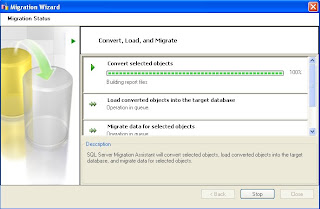
Here, we going to Migrate Microsoft Access 2003 Database to SQL Server 2008.
http://www.microsoft.com/sqlserver/2008/en/us/migration.aspx
2. Once launched the page, Click the appropriate link as given below

3. Once click the link, Download page will appear and Click Download Button. Once download completed.
4. Double click the downloaded file.





9. Follow the screen as given below
10. Click Next button and follow the screen sequence.

11.

12.

13.

14.

15.

16.

17.

18.

19.


21.Licence Management required to login MSN Live ID
22.
23.

24.

25.

26.

27.

28.

29.

30.

31.If we want to retain the link between MSAccess Database and SQL Server, Just Check the Link Tables check box, If you don't want to link the tables, Just uncheck.

32.
33.

34.

35.

36.

37.


Microsoft Access 2003 database successfully migrated to SQL Server 2008.
ie: MSAccess to SQL Server, Oracle to SQL Server
What is Upgradation ?
Upgrading from one Edition/Version to another Edition/Version within the same Product type.
ie: SQL Server 2005 to SQL Server 2008
Here, we going to Migrate Microsoft Access 2003 Database to SQL Server 2008.
1. We have SSMA (SQL Server Migration Assistant) tool which can be downloaded from the url given below
http://www.microsoft.com/sqlserver/2008/en/us/migration.aspx
2. Once launched the page, Click the appropriate link as given below

3. Once click the link, Download page will appear and Click Download Button. Once download completed.
4. Double click the downloaded file.


5. Follow the screens as given below

6. Click Next.

7. Click Download Button.

8. Once downloaded the OLEDB provider for MSAccess, Double click the .exe file.

9. Follow the screen as given below
10. Click Next button and follow the screen sequence.

11.

12.

13.

14.

15.

16.

17.

18.

19.

20.

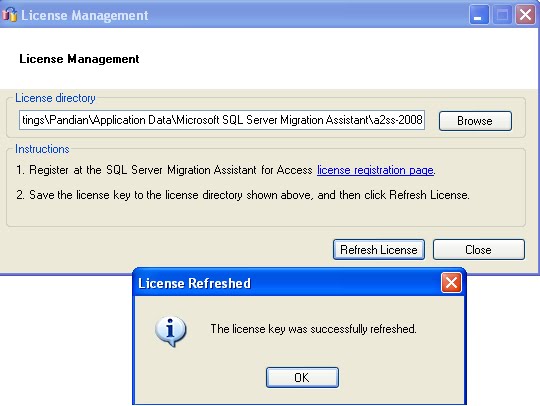
21.Licence Management required to login MSN Live ID

22.

23.
24.

25.

26.

27.

28.

29.

30.

31.If we want to retain the link between MSAccess Database and SQL Server, Just Check the Link Tables check box, If you don't want to link the tables, Just uncheck.

32.

33.

34.

35.

36.

37.

Microsoft Access 2003 database successfully migrated to SQL Server 2008.
Upgrade SQL 2005 to SQL 2008
Here, I am going to upgrade SQL Server 2005 Standard Edition to SQL Server 2008 Standard Edition.
What are the Version and Edition supports when upgrade - Go to Bottom of this post.
SQL Server Upgrade Advisor helps us prepare for upgrades to SQL Server 2008. Upgrade Advisor analyzes installed components from earlier versions of SQL Server, and then generates a report that identifies issues to fix either before or after we upgrade.
1. Take a Backup of System Databases and User Defined Databases.
2. Generate Scripts for Replications, Right Click on Replication --> Generate Scripts
3. Make a list of Linked Servers on the Existing SQL Servers.
4. Start the SQL Server, SQL Server Agent, SQL Server Analysis Services, SQL Server Full Text Search, SQL Server Reporting Services which you going to Upgrade(SQL Server 2005)
5. Step Into SQL Server 2008 Setup --> Setup.exe -->
6. Now you will have SQL Server Installation Center screen as given below

7. Click the Install Upgrade Advisor, So we can easily identify what are all the prerequisites, Warnings and Errors.
8. Once you completed the Installation of Upgrade Advisor.

9. Click the SQL Server 2008 Upgrade Advisor as given above.
10. It will open a window named Microsoft SQL Server 2008 Upgrade Advisor and Click the link as given below

11. It will open a wizard and click Next as given below

12. SQL Server components window shows that what the components to be upgraded. In this case we could not select Notification Services. Because, Notification Service is deprecated in SQL Server 2008. So Un-check the checkbox for Notification Services.
13. Just Click the Detect button to fetch the Server name. (So, we can select which Server want to Upgrade)

14. Click the Next Button as given above.
15. It will show Connection Parameters wizard, In that wizard, Select the Instance Name which you want to Upgrade and Provide the Authentication and Credentials as given below.

16. Select the button next. SQL Server Parameters wizard appears, in that wizard, select the all Databases which you want to analyze as given below.

17. Click the Button Next.
18. It will prompt Reporting Service Instance and Analysis Service Instance; select the Instance name for each.
19. It will prompt DTS Parameters. Just select and Click Next button

20. Click the option for SSIS Parameters. Just select and Click Next button.

21. Click the Run button on Confirm Upgrade Advisor Settings wizard.
22. Once the analysis completed. It shows the Analysis status wizard as given below.

23. Once completed the analysis. Click the Launch Report button.

24. In this wizard, Select which service you want to see the Errors / Warnings as given below.

25. Once the Warnings / Errors fixed, Click the Back button and Click the Run button until the all services success.
26. Once the Upgrade Advisor completed successfully.
27. Run the Setup.exe file.
28. Click the link Upgrade from SQL Server 2000 or SQL Server 2005 under Installation as given below

29. The Upgrade process started.

30. It passes the all Setup support rules.

31. Click the OK button
32. Click Install button.
33. Click the Next button as given below

34. Enter the Product Key and Click Next Button.
35. Select the I accept the license terms check box and Click Next button
36. It will browse the all available instances on the server, Select the Instance to upgrade as given below

37. Click the Next button on Select Instance wizard.
38. Click the Next button on Select Features wizard.
39. Click the Next button on Instance Configuration wizard.
40. Click the Next button on Disk Space Requirements wizard.
41. Click the Next button on Server Configuration wizard.
42. Click the Next button on Full-text Upgrade wizard.
43. Click the Next button on Reporting Services Authentication (Windows / Mixed Mode) wizard.
44. Click the Next button on Error and Usage Reporting wizard.
45. If the Up gradation Rule is not matching with the Edition and Version then, It will show an Error as given below

46. Otherwise, Click the Next button on Upgrade Rules wizard.
47. Ready to Upgrade wizard appears as given below

48. Click the Button Upgrade on Ready to upgrade wizard.
49. Once the Upgrade Process completed, Click the Next button as given below

50. Once the Complete process completed the screen looks like as given below

51. Complete upgrade activity report available as a link on local machine.
52. When you select the Link the text file looks like as below

53. Click the Close button.
54. I try to connect the Instance SQL2005 using SQL Server 2005 Standard Edition, But It is throwing an Error as given below

55. Because, we have upgraded the SQL2005 instance to SQL Server 2008 Standard.
56. Now, I try to connect the Instance SQL2005 using SQL Server 2008 Standard Edition, I can able to connect it.
57. Finally, I examined the Upgraded server. All the Databases, Login Credentials, Linked Servers, Replications are accessible in SQL Server 2008 Standard Edition now as given below

58. The instance name is same as SQL2005, but the edition is SQL Server 2008 Standard Edition.
Version and Edition Upgrade Path
http://msdn.microsoft.com/en-us/library/ms143393(v=SQL.100).aspx
Subscribe to:
Comments (Atom)